DocsUse TapSift
App Actions
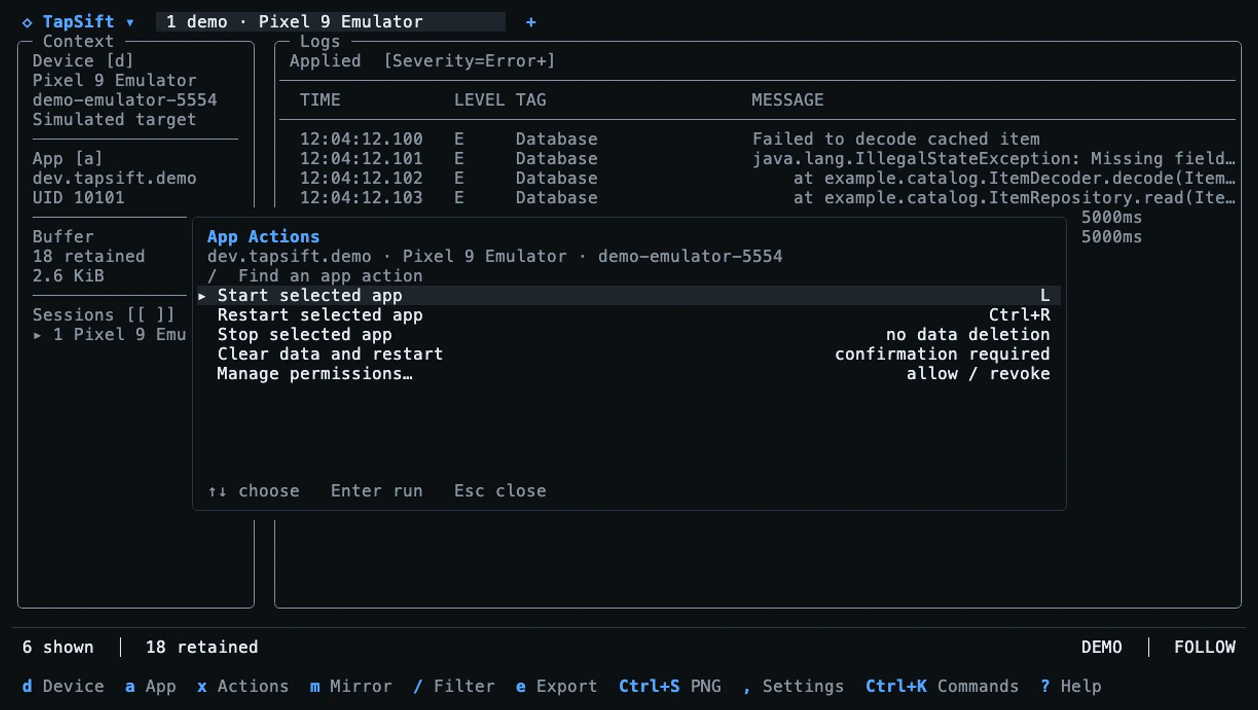
Control the app you are watching without leaving the log view: start it, restart it, stop it, change a permission, or reset it.
Before you start
- A live Android device or emulator with a verified
adbtransport, and a selected app. See First device. - Use a development build you own. These actions change app state.
- Files and saved history cannot run actions. In the demo, actions are simulated.
Steps
1. Open the menu. In the log view press x.
2. Pick an action. Quick keys from the log view: L (Shift+L) starts the selected app, and Ctrl+R restarts it.
3. Close. Esc closes the menu or cancels a pending confirmation.
| Action | Android | iOS Simulator (experimental) |
|---|---|---|
| Start | Starts the package's launcher activity | Launches the bundle on the booted Simulator |
| Restart | Force-stops the package, then starts its launcher activity | Replaces a running instance, or launches if absent |
| Stop | Force-stops the package for the verified Android user. Works without a launcher | Terminates the bundle |
| Clear data and restart | Deletes the app's local data, then starts it. Needs a typed confirmation | Not available |
| Manage permissions | Allow or revoke one permission at a time | Allow or revoke one permission at a time |
Tab changes wait for a running action to finish.
Manage a permission
- Open x → Manage permissions.
- Select one permission.
- Choose Allow or Revoke.
Android permissions: Camera, Microphone, Approximate location, Precise location, Notifications, Read contacts. TapSift reads the current runtime grant for that package and Android user, marks it current, and rereads after a change. Press Ctrl+R in the panel to check again.
iOS Simulator permissions: Location while using the app, Microphone, Add photos only, Photos (full access), Contacts (full access), Calendar. Camera and Notifications are unavailable.
What you should see
On Android the panel shows the grant state as read from the device. On the Simulator the state is unknown: TapSift sends one explicit change for the chosen service and cannot read it back. A failed or ambiguous read also leaves the state unknown.
App-ops, foreground requirements and device policy can still affect real access. Packages that share a UID can share a grant. The OS can reject a Simulator change, and a privacy change can stop the app.
Clear data and restart (Android)
Warning:
This deletes the selected app's local data, including sessions and settings. It cannot be undone. Use a disposable development app.
- Make the terminal at least 60 columns by 21 rows, including the tab bar.
- Open x → Clear data and restart.
- Read the package and target in the dialog.
- Type
RESETand press Enter. Press Esc to cancel.
If the clear succeeds and the launch fails, TapSift reports both outcomes.
How TapSift checks before it acts
Android actions need a connected, verified ADB transport and the selected package UID. TapSift verifies the transport serial, rechecks a known emulator's AVD name with a read-only console query, rechecks the UID against the package on that transport, and uses the Android user in the UID. Start, restart and clear resolve a launcher that belongs to the selected package first. If UID verification fails, reselect the app. An emulator whose identity is unknown must be refreshed before actions.
Limits
- Actions are serialized across the workspace. A conflicting action is refused with a retry message and is never queued.
- Cancelling cannot undo a change the device already accepted.
- Simulator permission state is always unknown.
- Physical Android and real Simulator app actions are not verified. The automated checks use fake platform tools.
- Replaying a file or saved session disables App Actions.