DocsGet started
Connect your first device
Connect an Android phone or emulator, pick one app, and see only that app's logs.
Before you start
adbfrom Android SDK Platform Tools, on yourPATH(or pass--adb PATH). See Install.- An Android device with USB debugging on and this computer authorized, or a booted emulator.
- A debuggable app installed on it. TapSift lists installed packages.
Try the Quickstart first if you have not used the interface before.
Steps
1. Check what TapSift can see:
tapsift targetstargets prints JSON: Android devices (android:<serial>), Android Virtual Devices (avd:<name>) and iOS Simulators (ios:<UDID>), each with its state and whether it can be booted or woken. Discovery reports errors per source, so a missing tool never hides the others.
2. Open TapSift:
tapsiftTapSift restores a remembered target if it is available. Otherwise it selects a single identifiable connected Android device, or opens the device picker.
3. Pick a device. Press d. Rows are grouped as Android device, Android emulator and iOS Simulator. Tab cycles All / Active / Emulators / Simulators / Favorites. Press Enter on a connected device. On a stopped emulator, Enter boots it first. See Devices and emulators.
4. Pick an app. The app picker opens next, or press a any time. Tab cycles All / Running / Favorites. Press Enter on your app. Capture starts and is scoped to that app.
5. Skip the pickers next time, or script it:
tapsift --device emulator-5554 --app com.example.appReplace both values with yours. TapSift remembers the selected app for each device.
What you should see
- A device row shows its state. ADB reports
devicewhen the transport is connected. TapSift checks boot readiness separately, so a booting emulator is not treated as ready. - The log view fills with records for your app. The footer shows capture status.
- Offline and unauthorized devices stay in the list, so you can see why a device is missing. Authorize this computer on the phone and press Ctrl+R in the picker to refresh.
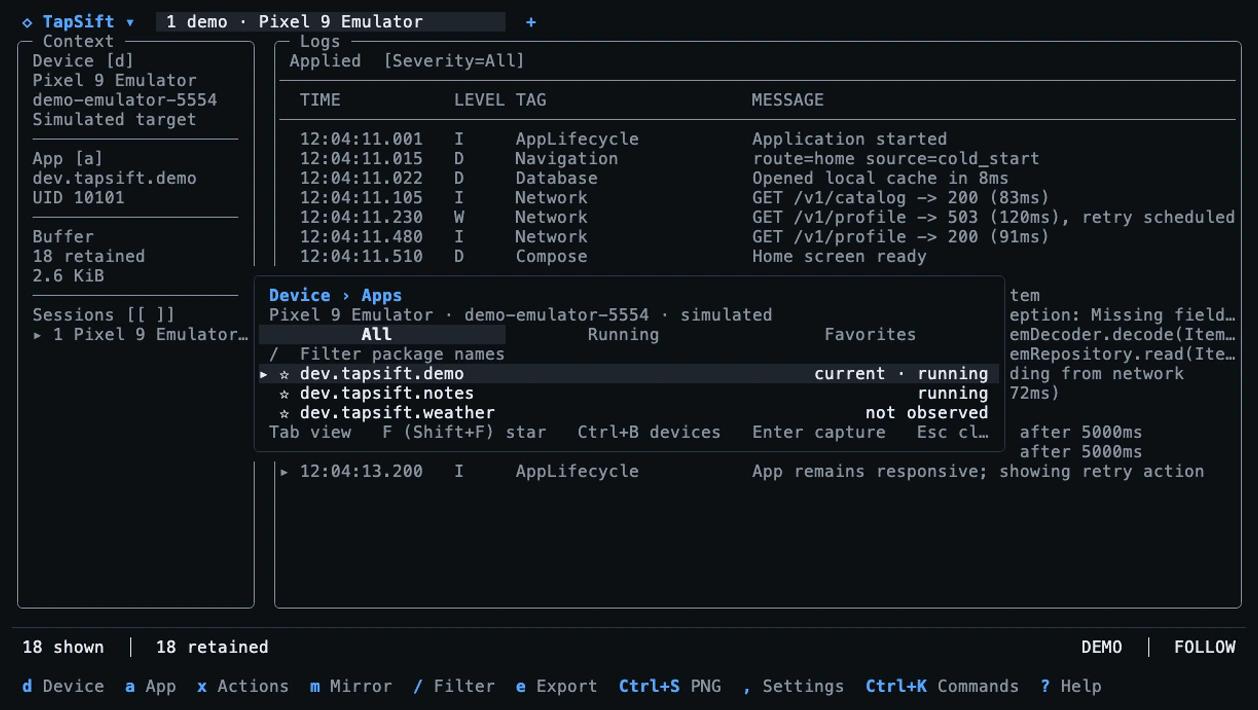
What "scoped to an app" means
TapSift resolves the package to its UID for the current Android user and captures logs for that UID.
- Capture survives ordinary app restarts, and includes subprocesses with the same UID.
- If the UID cannot be resolved, TapSift fails with an error. It never silently falls back to all apps.
- Apps with a legacy shared UID can contribute logs. Isolated processes and system crash reporters can run under other UIDs and will not appear.
- The Running view in the app picker is a UID snapshot, including background processes. It does not mean the app is in the foreground.
Favorites
Press F (Shift+F) on a highlighted device or app, or click its star. Lowercase f types into the search box. Favorites survive reload and show in the Favorites view. An emulator whose identity TapSift cannot confirm cannot be favorited, because its serial can later belong to a different emulator.
If capture stops
Press R to reconnect the original target and re-resolve the app's UID. TapSift refuses to substitute a different device. Transport IDs belong to the current ADB server, so after restarting ADB, refresh and reconnect.
Automatic reconnect and gap markers are not built yet. A snapshot only holds what Android keeps in its current log buffers, so it is not a complete history.
Limits
- Live capture is verified against fixtures and fake tools. Real server restart behavior and prolonged USB or Wi-Fi drops are not verified.
- A severity filter changes what you see. It cannot recover logs removed at build time or suppressed by the app or OS.
- A physical line over 64 KiB fails capture.
If something does not show up, see Troubleshooting.