DocsUse TapSift
Sessions and tabs
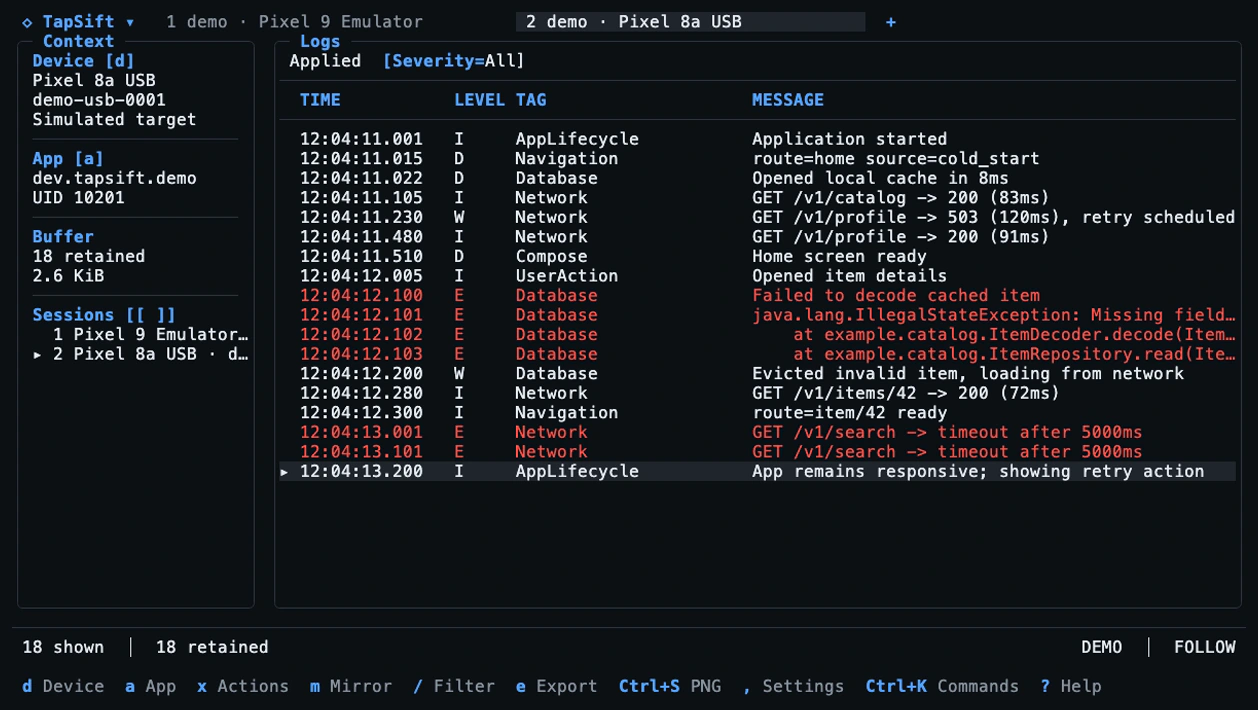
Watch more than one app or device at once, keep each tab's filters separate, and leave TapSift only when you mean to.
Before you start
Have a source open: the demo (tapsift --demo) or a device and app. See First device.
What a tab holds
A workspace supports up to four session tabs. Each tab has its own:
- source (device and app, a file or a saved session)
- filters and scroll position
- recording state (History)
Capture and active recordings continue in background tabs. Only the visible tab runs Mirror.
Steps
| Do this | Keys |
|---|---|
| Open a tab | Ctrl+T, or click + |
| Previous / next tab | [ / ], or click a tab |
| Close the current tab | Ctrl+W |
A new live tab opens the device picker. If you started TapSift with a file or saved session, a new tab reopens that input. An empty tab shows New session.
The bracket keys switch tabs from the log view. In a text editor they type the characters instead.
Tab changes wait for a running app action or an active save to finish.
Quit safely
TapSift always asks before it exits, including for empty workspaces and finished offline sessions. This applies to q, Ctrl+C, Commands → Quit, and closing the last tab. An operating system interrupt (SIGINT) uses the same dialog.
| In the exit dialog | Keys |
|---|---|
| Keep running (selected by default) | Enter |
| Select Exit | Tab, then Enter |
| Cancel | Esc or Ctrl+C again |
Closing one tab among several also asks, even after its capture stopped or disconnected. Capture and recording keep running in background tabs until you confirm.
Warning:
SIGTERM, a forced kill and closing the terminal window do not ask for confirmation. An unsaved export or an active recording can be cut short.
Reconnect
If a live source drops, press R to reconnect the original device and app. TapSift will not attach a different device. See First device.
Limits
- Four tabs per workspace.
- Each tab retains up to 10,000 records within a 16 MiB text budget.
- Tabs live in one TapSift process. They do not survive quitting. To keep evidence across a restart, save a session.